Research library / Installation & diagnostics
Voice input for website chatbots: microphone, transcription and mobile testing
Voice input is only useful when a visitor can deliberately start and stop recording, review the transcription and choose whether to send it. Maintain a complete text path when microphone access or speech recognition fails.
Editorial review: 2026-11-27 · MDN: SpeechRecognition availability · PIP research, not a live vendor performance test.
Decision path
Work through the problem
Practical example
A common situation
A fictional visitor on a phone wants to describe a renovation project. They tap Record, see an elapsed time, stop after 15 seconds and receive an editable draft. They correct the address spelling before sending. On another browser microphone access is denied: the same visitor can type instead, without a repeated permission prompt.
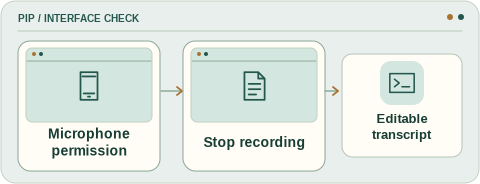
Illustrative decision workflow, not measured product performance.
Implementation guide
Where to go and what to check
Start here: Widget input controls → permission state → recorder or speech recogniser → editable composer.
- Identify whether the implementation uses browser speech recognition or microphone capture followed by transcription. Their support, errors and data destinations differ; check the chosen implementation's privacy policy.
- Test the actual HTTPS site on representative Android, iOS and desktop browsers. Use a fictional sentence, verify start/stop/cancel, test permission refusal and interruption, and check that microphone tracks are released.
- Keep a short visible status and elapsed time during recording. On failure, return to a working composer without clearing existing text; never silently treat an empty transcript as a sent message.
- Measure time from stopping to a usable draft separately from the chatbot's response latency. Record browser and device versions, permission state and whether text can be edited.
What a passing test looks like
An actual recorded phrase produces the expected editable text
Denied and interrupted recordings return to usable text input
Cancelling never sends content or keeps recording
Interactive troubleshooting
What are you seeing?
Recommended next check
Check secure context, browser support, permission policy and actual device settings.
See all diagnostic paths
- No permission prompt or recording
- Check secure context, browser support, permission policy and actual device settings.
- A timer runs but no text appears
- Check whether audio capture and transcription actually completed; preserve the typed draft and surface a retry.
- Voice is unsupported or refused
- Disable the microphone path with a short explanation and retain text input.
This is a diagnostic guide, not a test of your website. Verify actual configuration before changing it.
Verification checklist
Before you call this complete
Checklist state is local to this page and is not submitted or stored.
Practical questions
Frequently asked questions
Does a microphone icon mean a chatbot has live voice conversations?
No. Voice-to-text, audio messages, spoken replies and real-time duplex voice are different features. Ask which one has been verified.
Does speech recognition always happen on the device?
No. It depends on implementation and browser. Verify processing location and retention before making a privacy claim.
Should a transcript send automatically?
For a message composer, an editable draft and deliberate send give the visitor a chance to correct errors.
Evidence and limitations
Primary sources
- MDN: SpeechRecognition availability — checked 2026-11-27
- MDN: getUserMedia permissions and secure contexts — checked 2026-11-27
Vendor documentation and browser guidance informed the steps. Scenarios are illustrative; we have not accessed your installation. Preserve your site’s security and consent requirements.