Research library / Installation & diagnostics
How to open Crisp from a custom chat button
Use the Crisp JavaScript command $crisp.push(['do', 'chat:open']) from your own button's click handler. Keep the existing permitted installation; a custom launcher is not a second embed or an alternative to loading Crisp.
Editorial review: 2026-11-26 · Crisp custom chatbox button documentation · PIP research, not a live vendor performance test.
Decision path
Work through the problem
Practical example
A common situation
A fictional support page has a visible Help button and the default widget overlaps its checkout footer. The team replaces the launcher with one accessible button, reuses the existing installation, and tests three states: ready, blocked by consent, and unavailable. Only the ready state should open chat; the other two offer a normal contact route. This is a proposed test, not a result from Crisp.
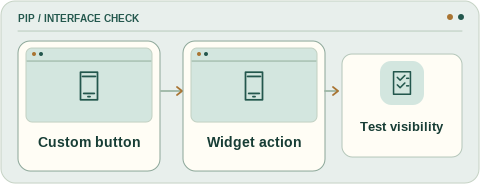
Implementation concept; follow documented steps and verification checks.
Implementation guide
Where to go and what to check
Start here: Your site's existing Crisp embed and support-button component → click handler → Crisp chat:open.
- Add a button with type=button and a clear text label. Bind one listener in your site's existing JavaScript rather than injecting another copy of the widget.
- On deliberate activation, call $crisp.push(['do', 'chat:open']) only within the permitted installation flow. Review default launcher visibility separately; do not use CSS to conceal consent or security controls.
- Test with keyboard, touch, consent denied, and the vendor script unavailable. Offer a normal contact link when chat cannot open, and ensure the checkout form has not been submitted.
What a passing test looks like
One initialisation and one intended click handler
Expected chat panel opens in an authorised ready session
No checkout submission and a usable alternative when unavailable
Interactive troubleshooting
What are you seeing?
Recommended next check
Check that the existing permitted SDK is available, the click handler is attached once and the workspace is not blocked.
See all diagnostic paths
- The button does nothing
- Check that the existing permitted SDK is available, the click handler is attached once and the workspace is not blocked.
- Both launchers remain visible
- Review the intended launcher settings and runtime visibility separately; a call to open chat is not a setting that removes the default button.
- The custom button submits checkout
- Use a native type=button, not an implicit form submit; check Enter and Space and retain focus if chat cannot open.
This is a diagnostic guide, not a test of your website. Verify actual configuration before changing it.
Verification checklist
Before you call this complete
Checklist state is local to this page and is not submitted or stored.
Practical questions
Frequently asked questions
Do I need another Crisp embed?
No. The documented open command uses the installed chatbox.
Can a custom launcher bypass consent?
No. Preserve your site's permitted loading rules and provide a non-chat alternative.
Products discussed
Marks identify the products discussed; no affiliation or endorsement is implied. Official asset sources are linked where a logo is shown.
Evidence and limitations
Primary sources
- Crisp custom chatbox button documentation — checked 2026-11-26
- Crisp runtime visibility documentation — checked 2026-11-26
Vendor documentation and browser guidance informed the steps. Scenarios are illustrative; we have not accessed your installation. Preserve your site’s security and consent requirements.